1Download Moblin from the App Store
Install Moblin from the App Store on your iPhone.
Moblin is one of the most popular apps for live streaming from iOS.
2Start Your Streamable Server
Start your server at https://streamable.run/dashboard.
Open the Ingests page at https://streamable.run/ingests.
3Reveal the Moblin QR Code
On the Ingests page, select the ingest you want to use.
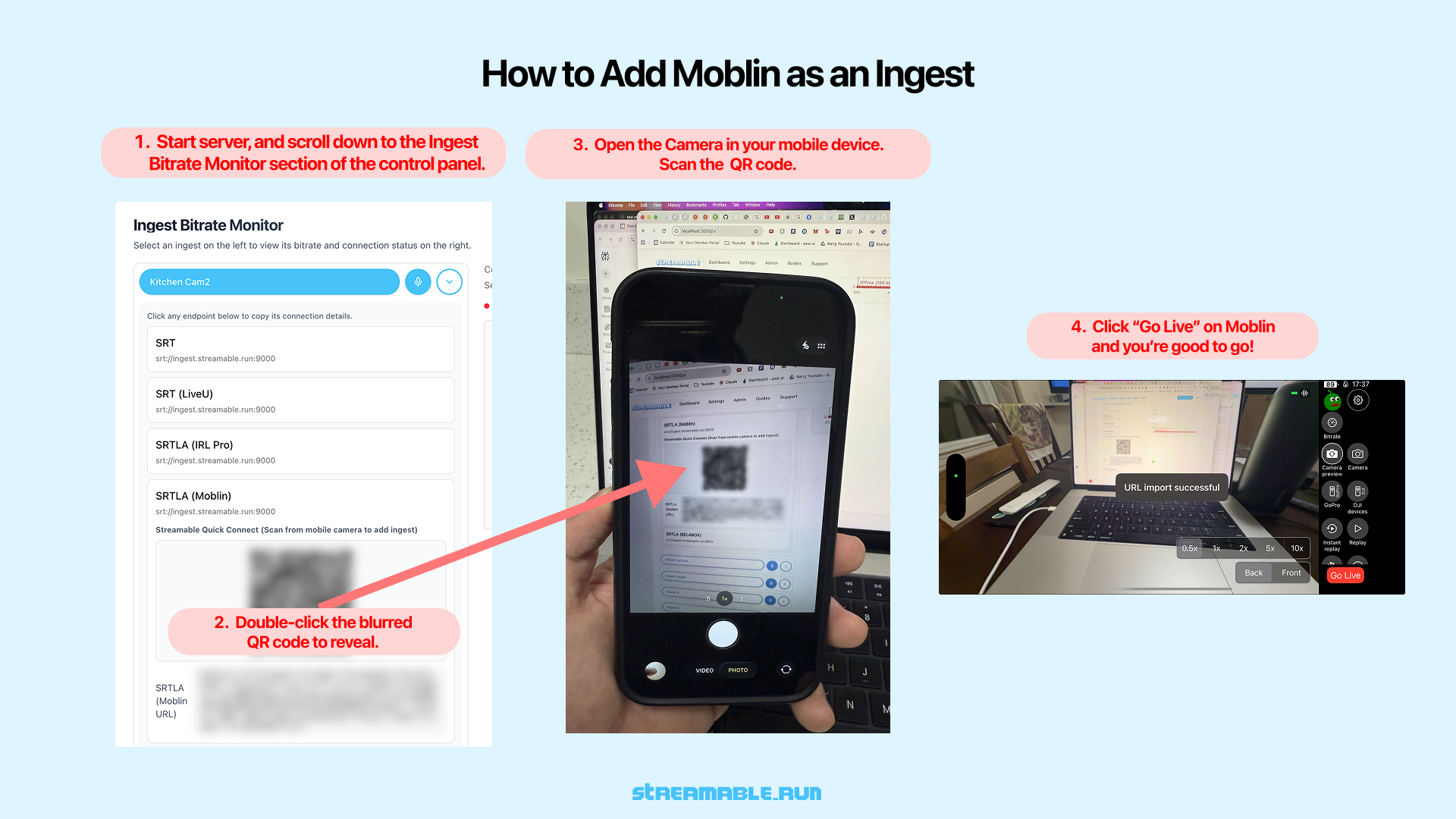
Under the Moblin (iPhone) section, double-click the blurred QR code to reveal it.
4Scan the QR Code with Your iPhone
Open the Camera app on your iPhone.
Point it at the unblurred QR code displayed on your screen.
Your iPhone will automatically open Moblin and import the stream URL.
5Go Live in Moblin
Once the URL is imported successfully, tap "Go Live" in Moblin.
Your iPhone is now sending video directly to Streamable as an ingest.
6Start Your Stream
In Streamable Dashboard, select the ingest and preview the iPhone feed in Ingest Bitrate Monitor. Press "Start Stream" and you are live. Happy streaming!