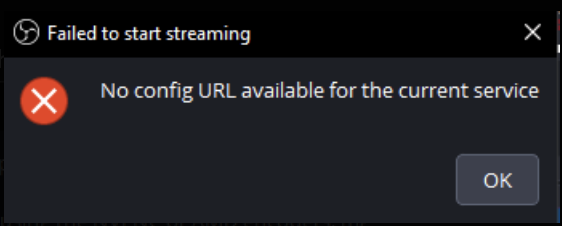
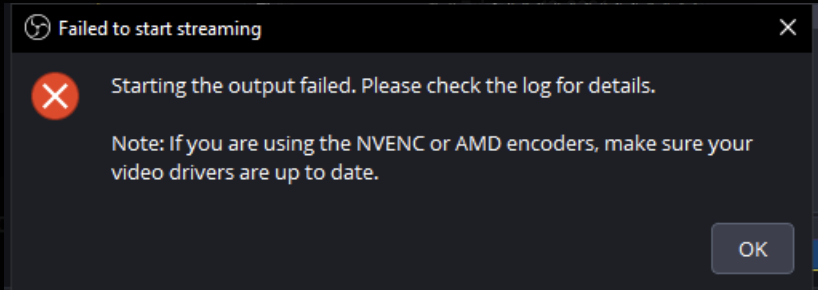
You may have run into this issue where OBS reports "No config URL available for the current service" and/or "Failed to start streaming: Starting the output failed. Please check the log for details. Note: If you are using the NVENC or AMD encoders, make sure your video drivers are up to date."
But don't worry - here is exactly how to fix it.
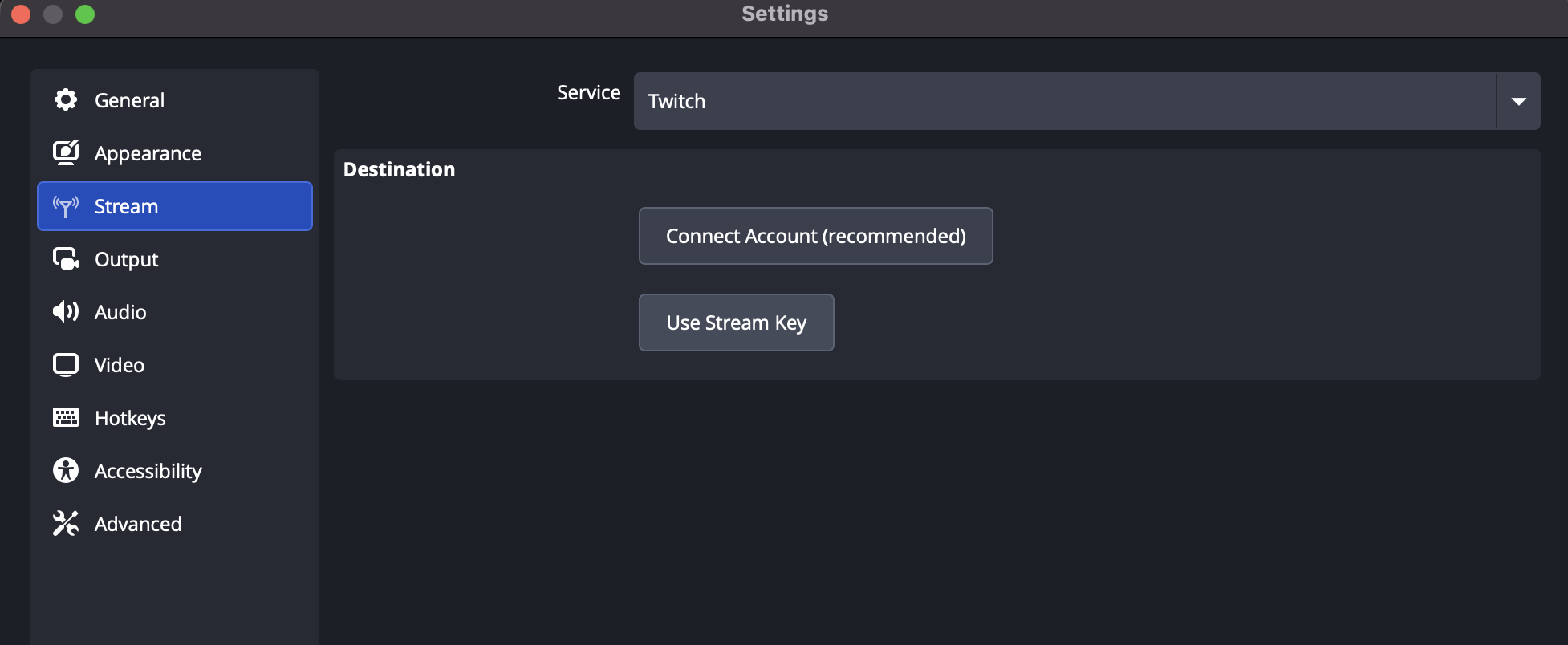
3In your OBS, go to Settings -> Stream -> Service -> Select "Twitch"
4Disconnect Twitch, then select "Use Stream Key"
5Disable "Enhanced Broadcasting"
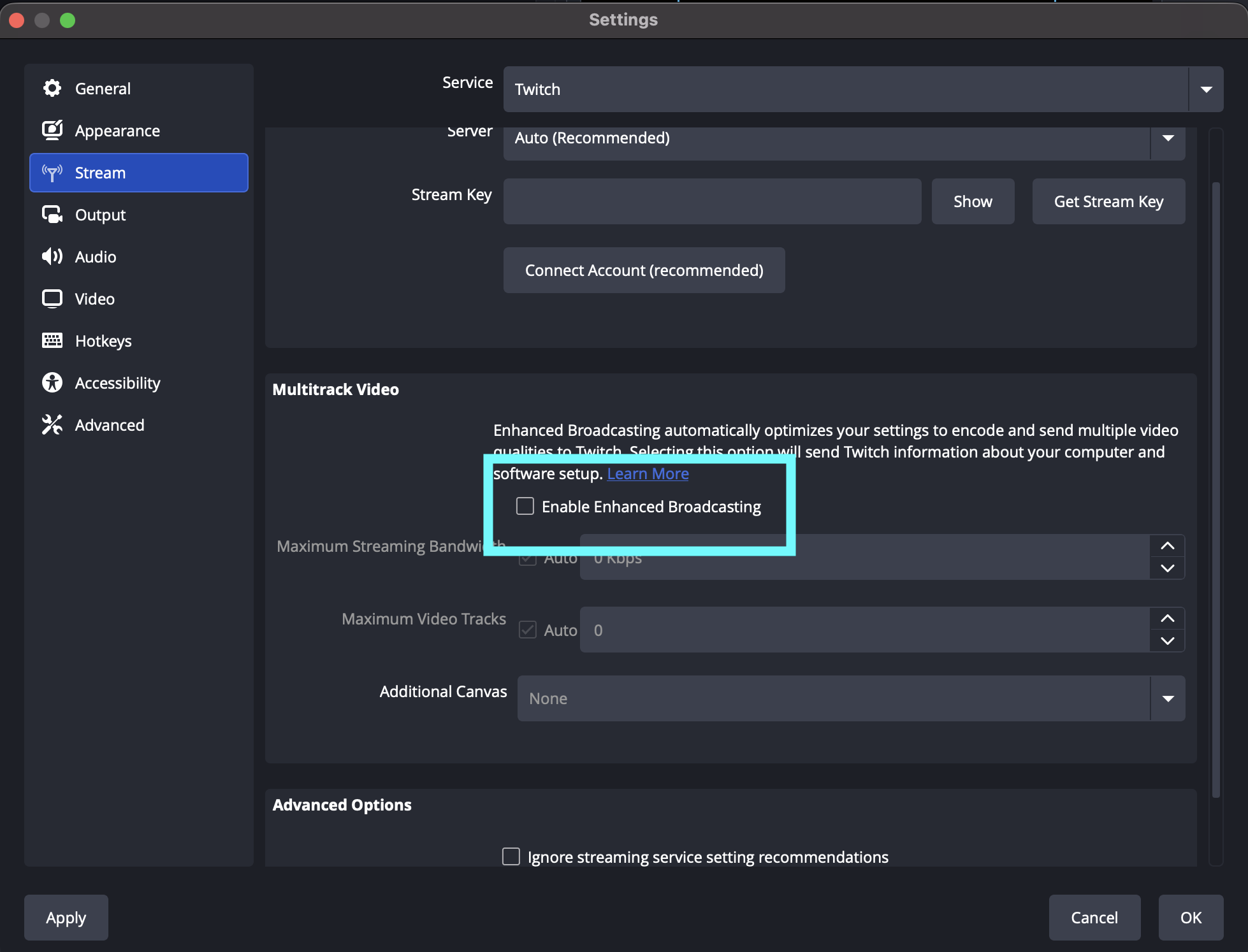
6Click "Apply" and then "OK"
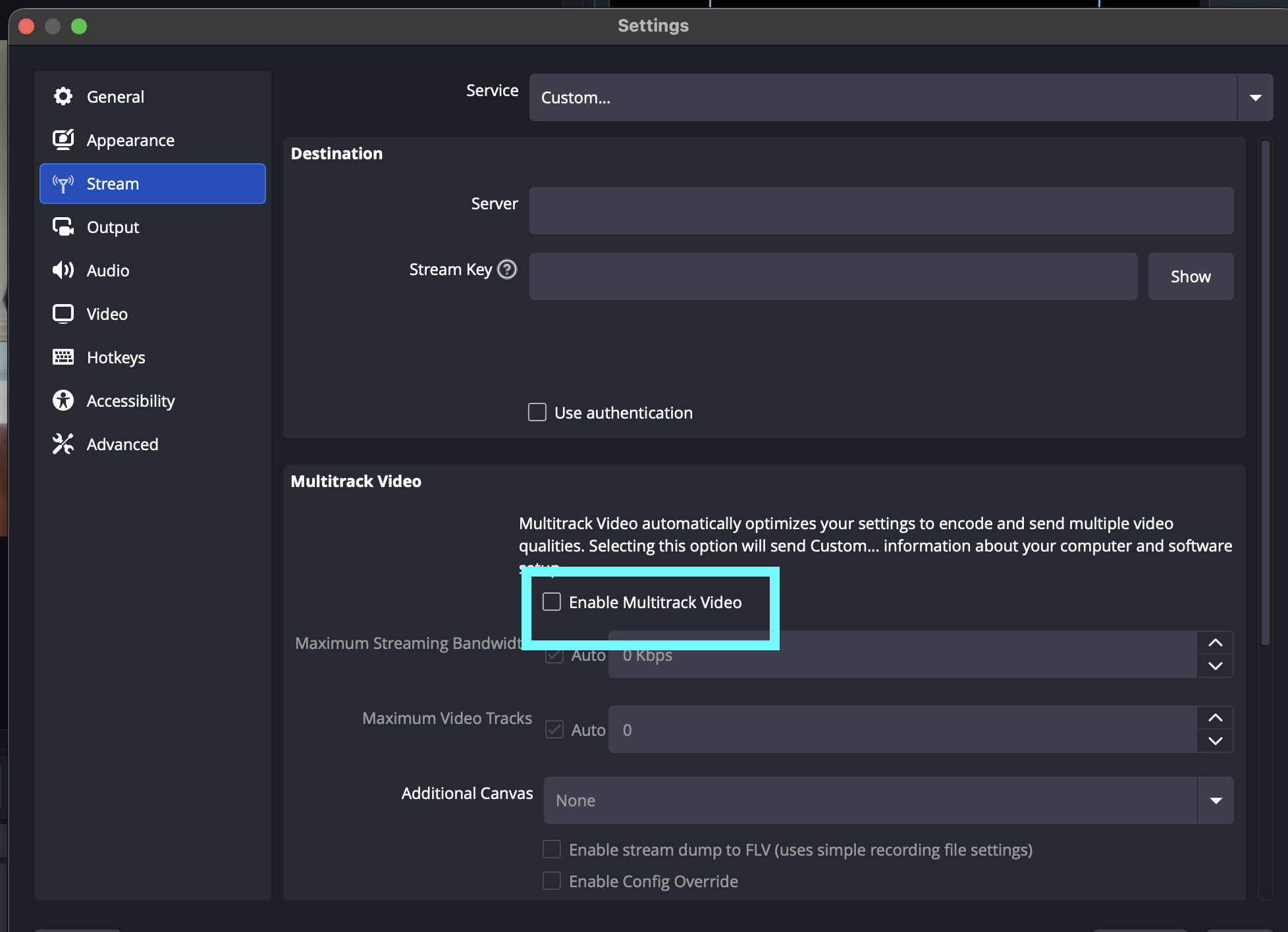
7Go back to OBS -> Settings -> Stream -> Custom -> Clear Stream URL -> Disable Multitrack Video
8Happy streaming!
The error should be gone now and you can enjoy live streaming to any destination!
Quick answers
Frequently asked questions
Why does OBS show "No config URL available for the current service"?
Most commonly, OBS is using Twitch account-linked service settings that are mismatched with your current stream setup. Switching to Twitch + Use Stream Key and disabling Enhanced Broadcasting usually clears the config mismatch.
What does disabling Use Enhanced Broadcasting change in OBS?
It tells OBS to use the standard stream-key workflow instead of enhanced service-specific config behavior. This often prevents startup failures tied to service config URL lookups.
Will this fix also help with Failed to start streaming output errors?
Yes, in many cases this exact sequence resolves both warnings together because they are triggered by the same stream service configuration path in OBS.
Do I need to regenerate my Twitch stream key?
Usually no. Most users only need to reconnect Twitch, select Use Stream Key, and apply settings. Regenerate the key only if your key was revoked or leaked.
Does this affect non-Twitch destinations like Kick or YouTube?
After applying this fix, you can reconfigure OBS Stream settings for your target destination as normal. The goal is to reset the problematic service config state first, then set your actual destination.
What if OBS still fails after these steps?
Update OBS and GPU drivers, restart OBS, then recheck your Output encoder and Stream settings. If needed, test once with a basic software encoder profile to isolate encoder-related failures from service-config failures.