Add chat and alerts for free on Streamable
In this guide we'll go over how to add your livestream's chat and alerts to your stream.
This works for Twitch, Kick, and other supported platforms, and it is completely free for Streamable users.
2Start your streaming server on Streamable
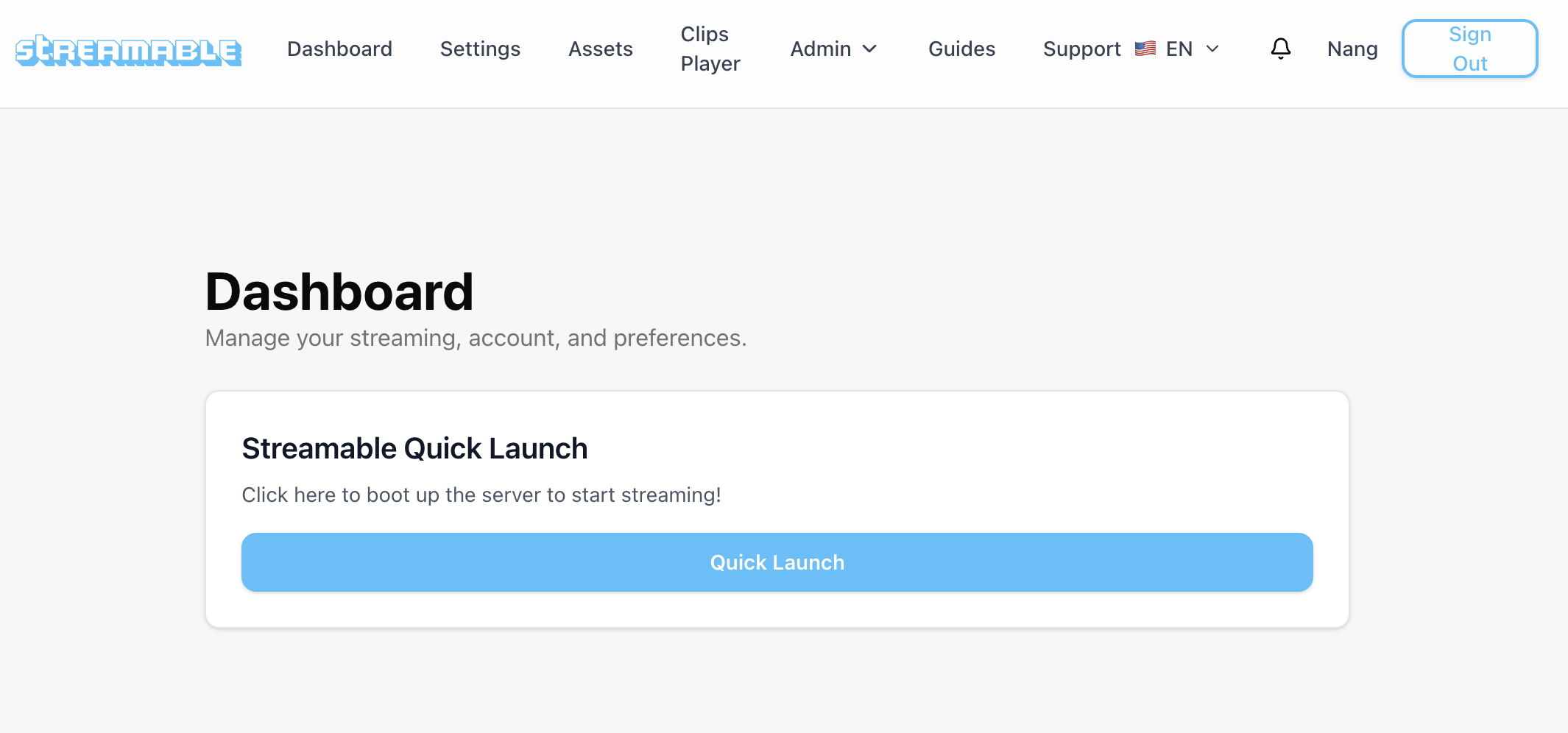
From your Streamable dashboard, click Quick Launch to boot up your streaming server.
Wait for the server to finish starting before moving on to the dashboard.
3Turn on your stream from your ingest and switch to your ingest's scene
Start sending video from whichever ingest you use, such as OBS, IRL Pro, Moblin, LiveU, or another supported source.
Make sure Streamable is already receiving your feed so you can immediately test the overlays inside your live scene.
4Open Streamable Remote OBS from the Dashboard
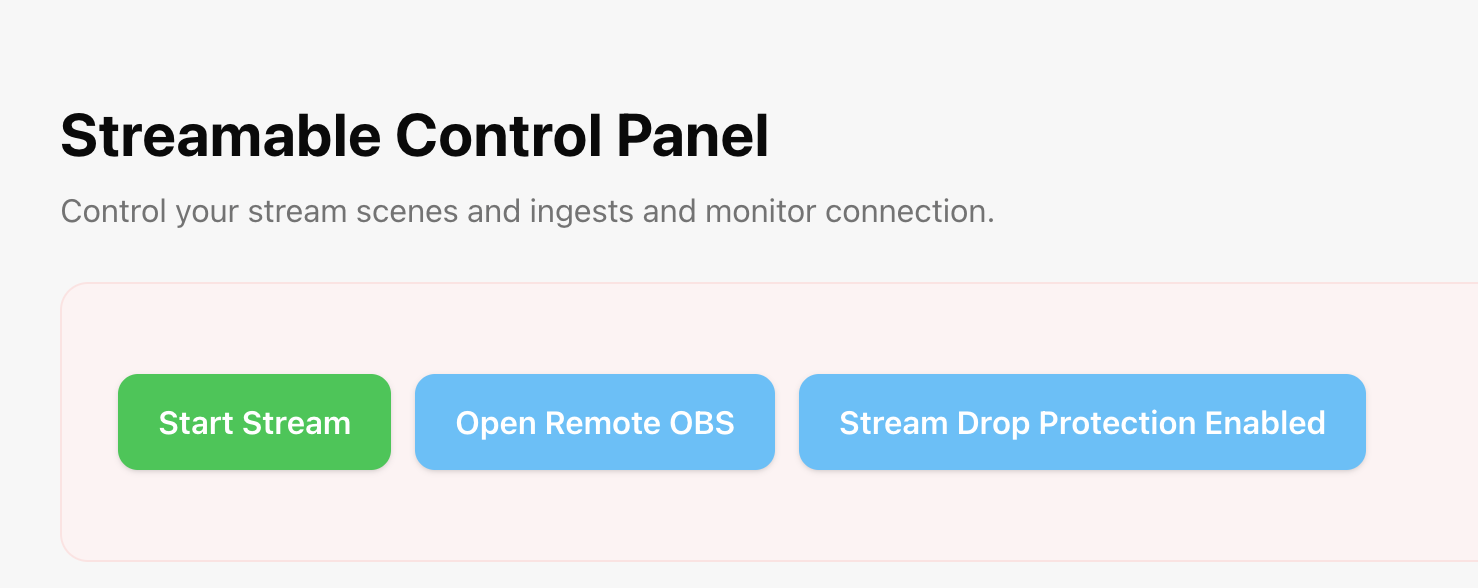
In Streamable, navigate to your Dashboard and click Open Remote OBS.
This opens the OBS interface where you can edit scenes and add browser-based overlays directly from the browser.
5Add a new Browser Source in your scene
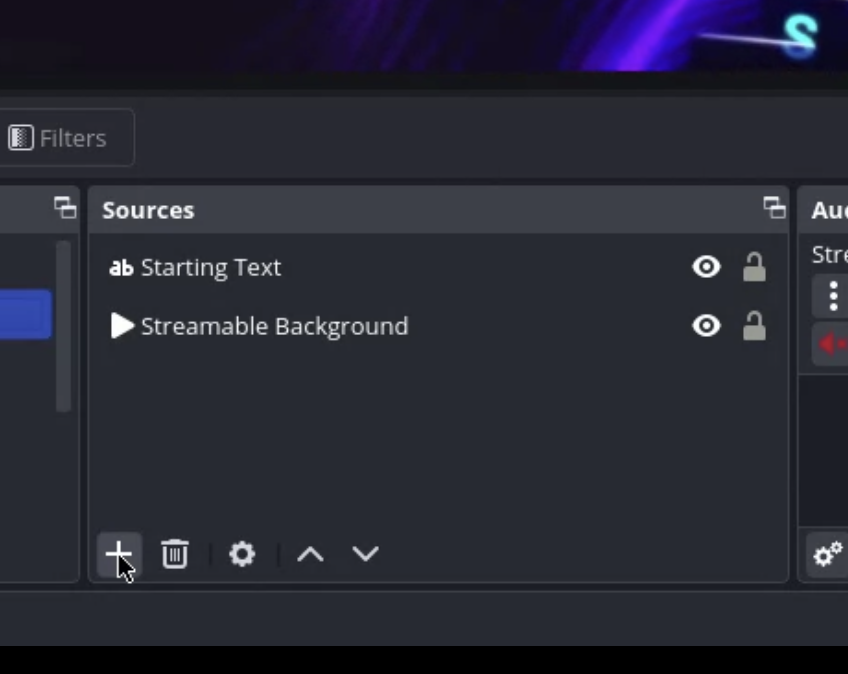
In Streamable Remote OBS, open the scene where you want chat and alerts to appear.
In the Sources panel, click the plus button and choose Browser Source.
6Create a Streamlabs account and open Chat Box
In another window, create a Streamlabs account at https://streamlabs.com/signup if you do not already have one.
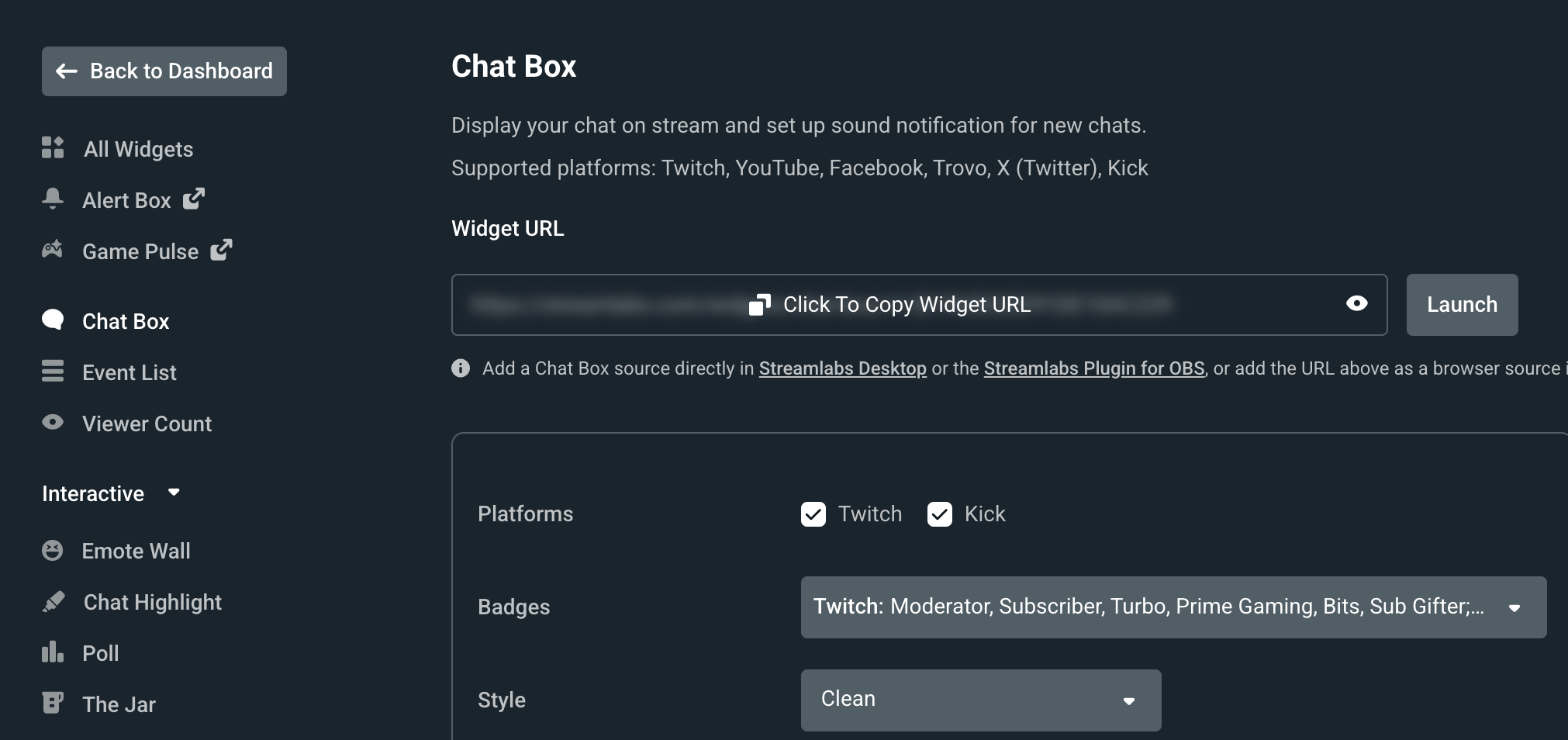
After signing in, open Chat Box from the left sidebar.
Streamlabs supports chat widgets for multiple platforms, including Twitch and Kick.
7Add your chat overlay
In Streamlabs, click to copy the Chat Box widget URL.
Go back to Streamable Remote OBS, paste that URL into the Browser Source URL field, and click OK.
Resize and position the Browser Source wherever you want chat to appear on stream.
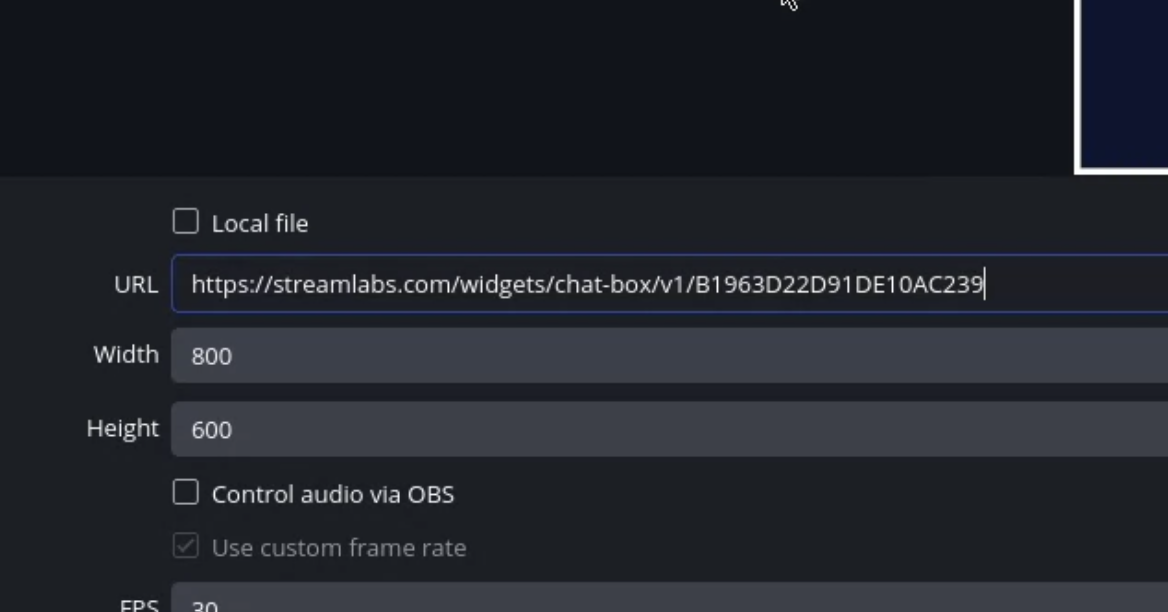
8Add your alert overlay
In Streamlabs, open Alert Box from the left sidebar and click to copy the Alert Box widget URL.
In Streamable Remote OBS, add another Browser Source, paste the Alert Box URL, and click OK.
Position the alert source where you want follows, subs, donations, raids, or other alerts to pop up on stream.
9You're all set! Happy streaming!
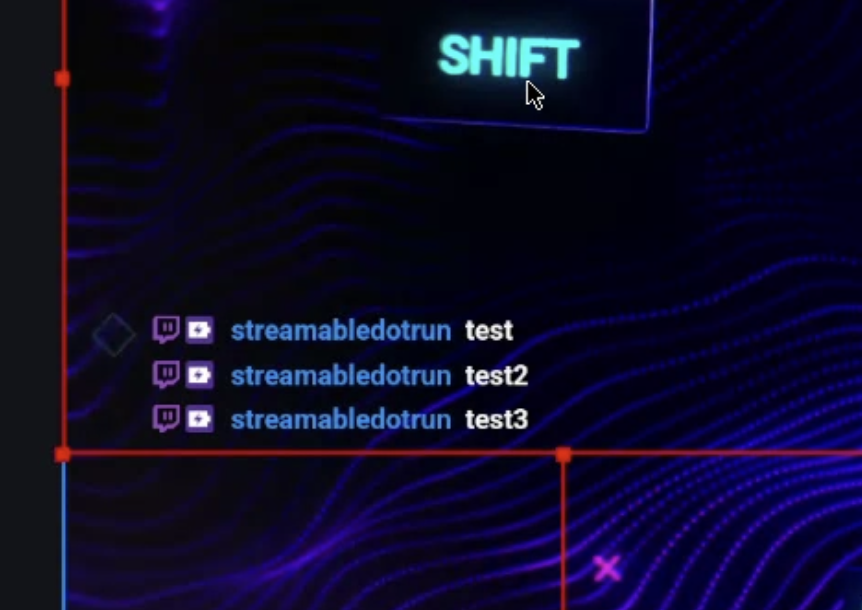
Your stream now has browser-based chat and alerts overlays running in Streamable Remote OBS.
Send a test chat message and a test alert before going fully live, then happy streaming!
Quick answers
Frequently asked questions
Is this free for Streamable users?
Yes. This browser-source overlay setup is completely free for Streamable users.
Can I use this for Twitch and Kick?
Yes. This guide is intended for Twitch, Kick, and other platforms supported by the widget provider you use.
Do I need local desktop OBS for this?
No. You can do the full setup directly inside Streamable Remote OBS from your browser.
What if the Browser Source stays blank?
Re-copy the widget URL from Streamlabs, confirm you pasted the full URL into the Browser Source field, and make sure the source is added to the correct scene.